Skip to content

alameensoft Support

One conversation.Until it’s resolved.

Open a support ticket from the web portal or straight from alameen ERP — then follow every reply until it’s fixed.

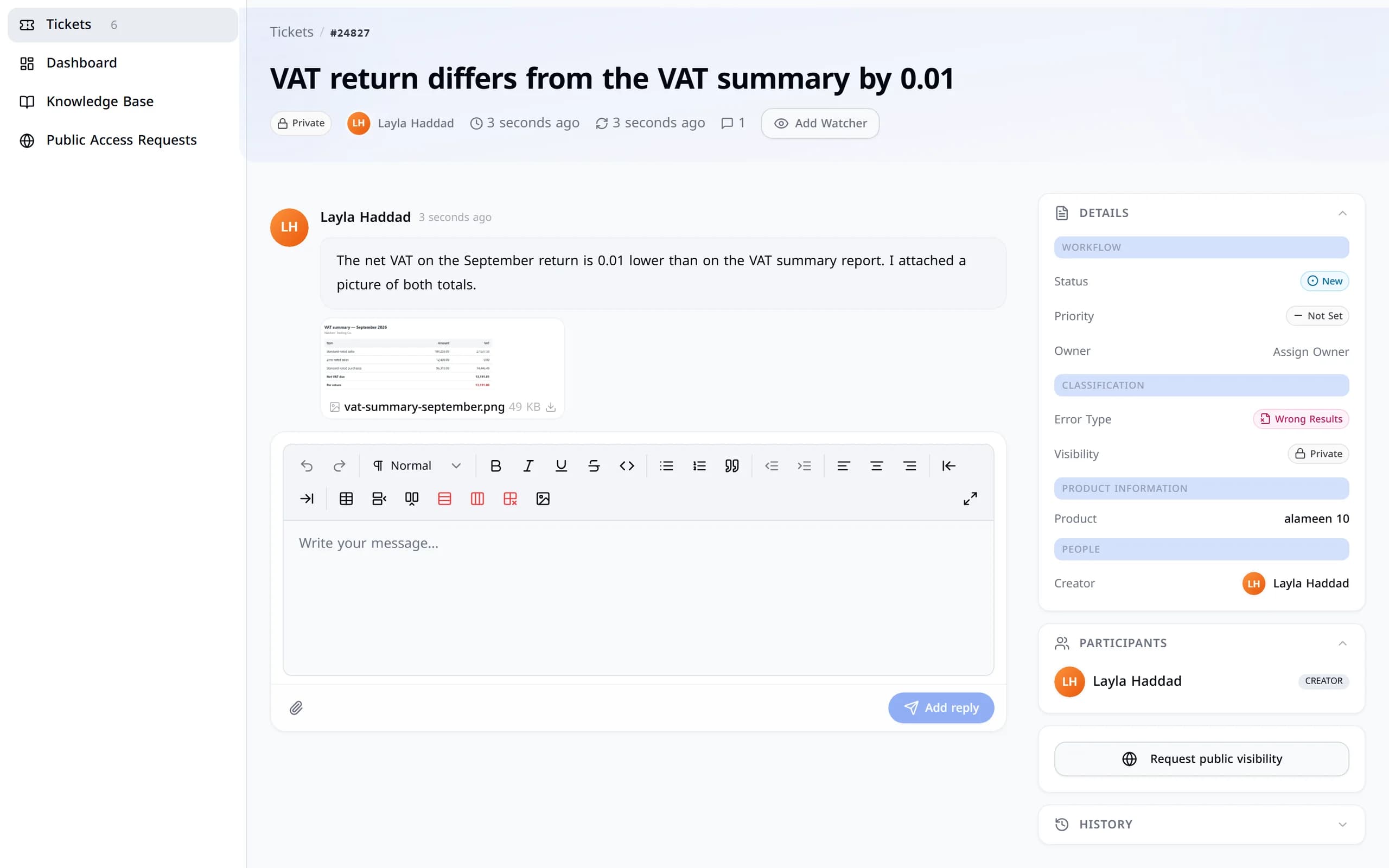
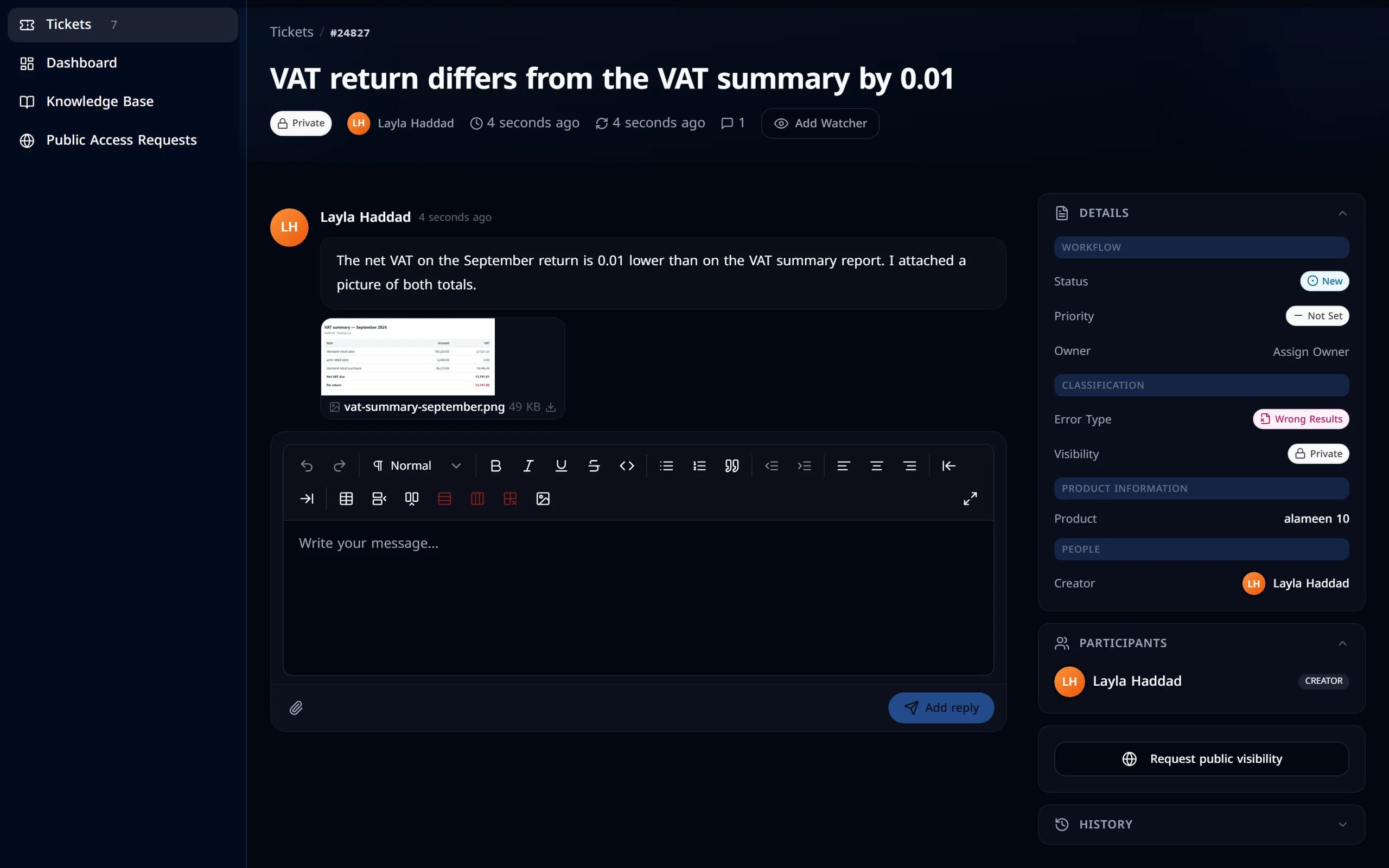
A new support ticket in the portal: its number and subject, the status New, the customer’s description and an attached picture.A new support ticket in the portal: its number and subject, the status New, the customer’s description and an attached picture.

Submit

Describe it once.

Choose the product, say what went wrong and attach what helps. Your ticket gets its number the moment you send it.

  1. 1

    Pick the product

    Say which product it is and what kind of problem you see.

  2. 2

    Describe and attach

    Write what happened and add pictures or files up to 25 MB.

  3. 3

    Name it and send

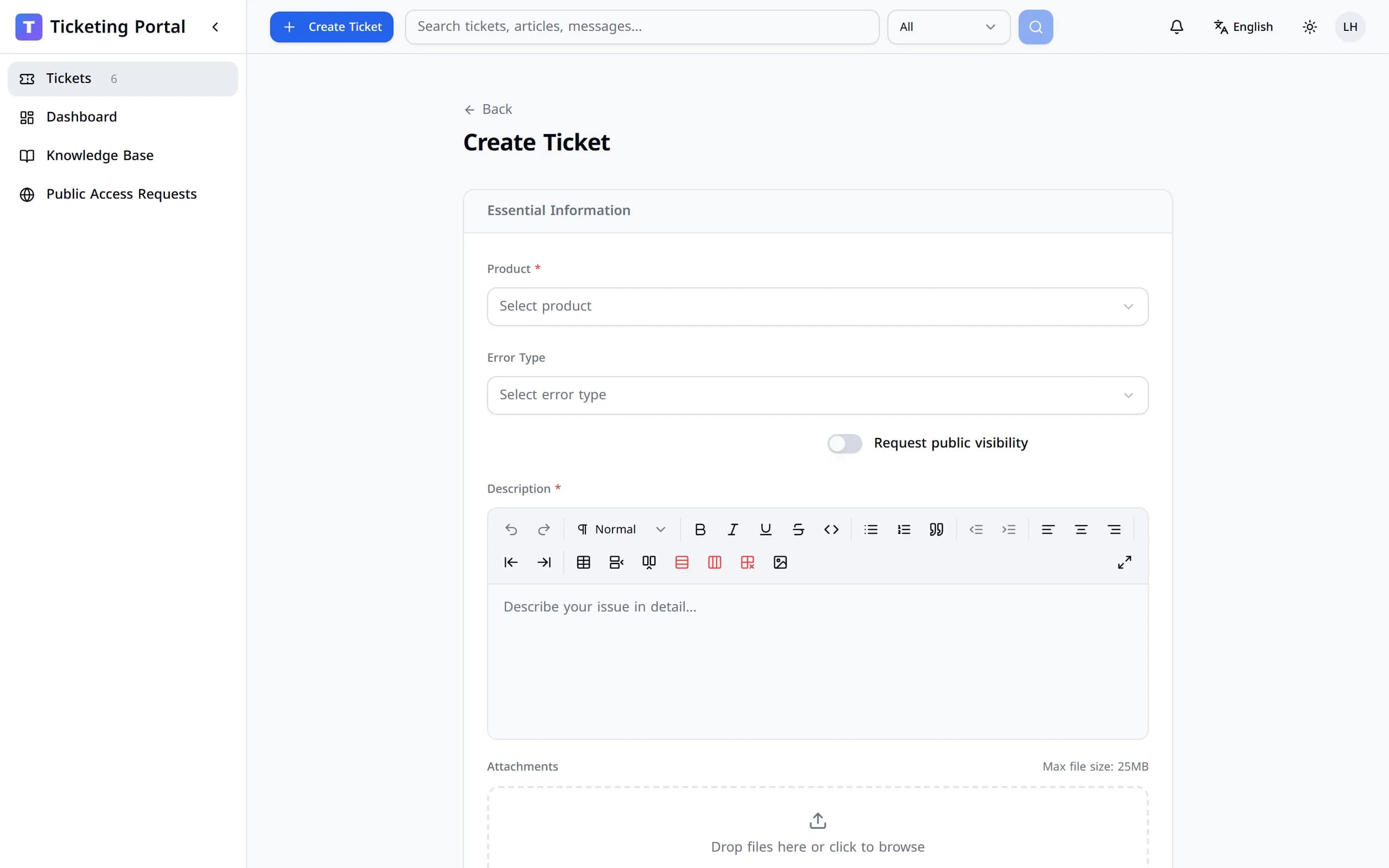
    Give it a subject. The ticket number comes right away.

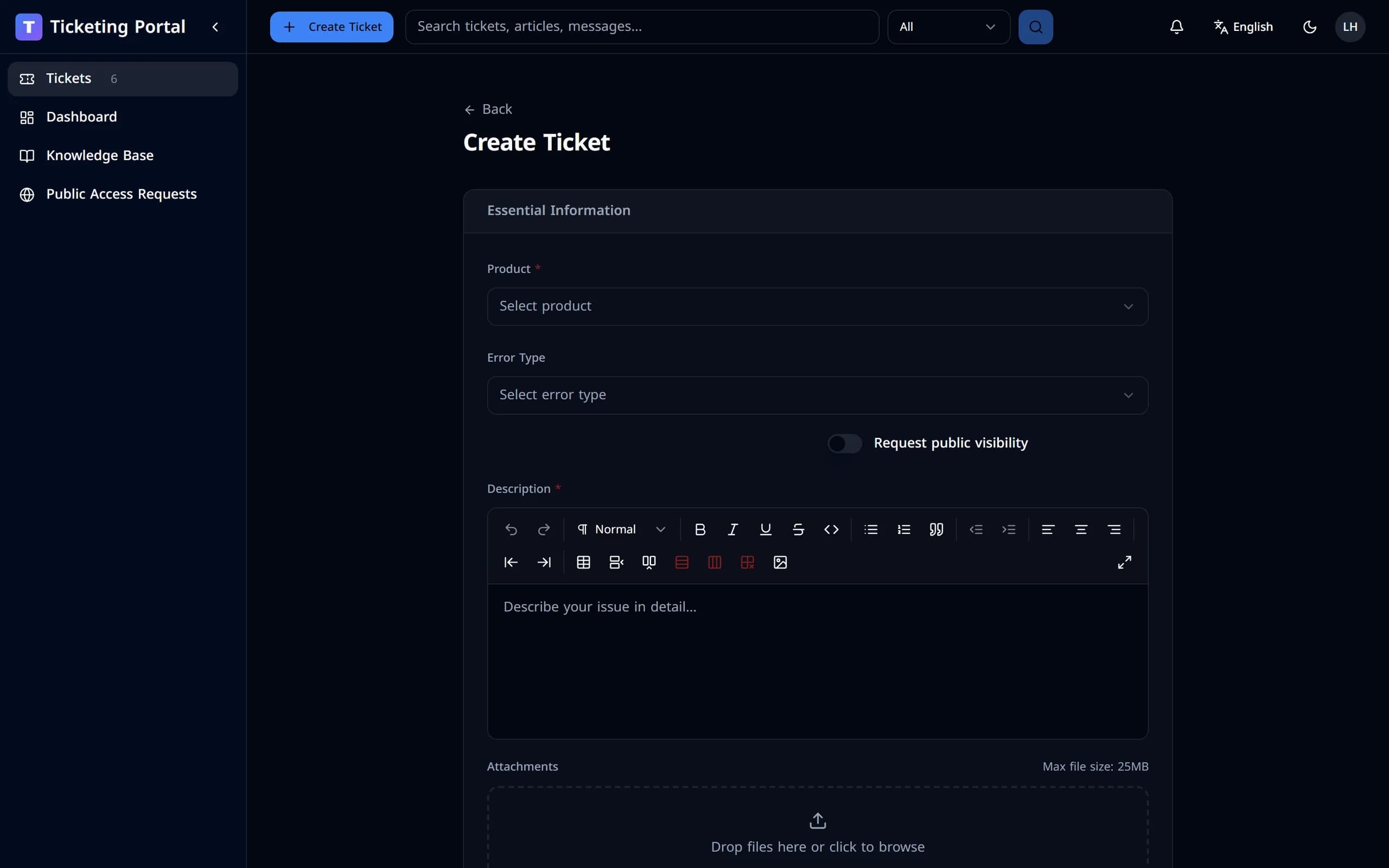
The new-ticket form in the portal.The new-ticket form in the portal.
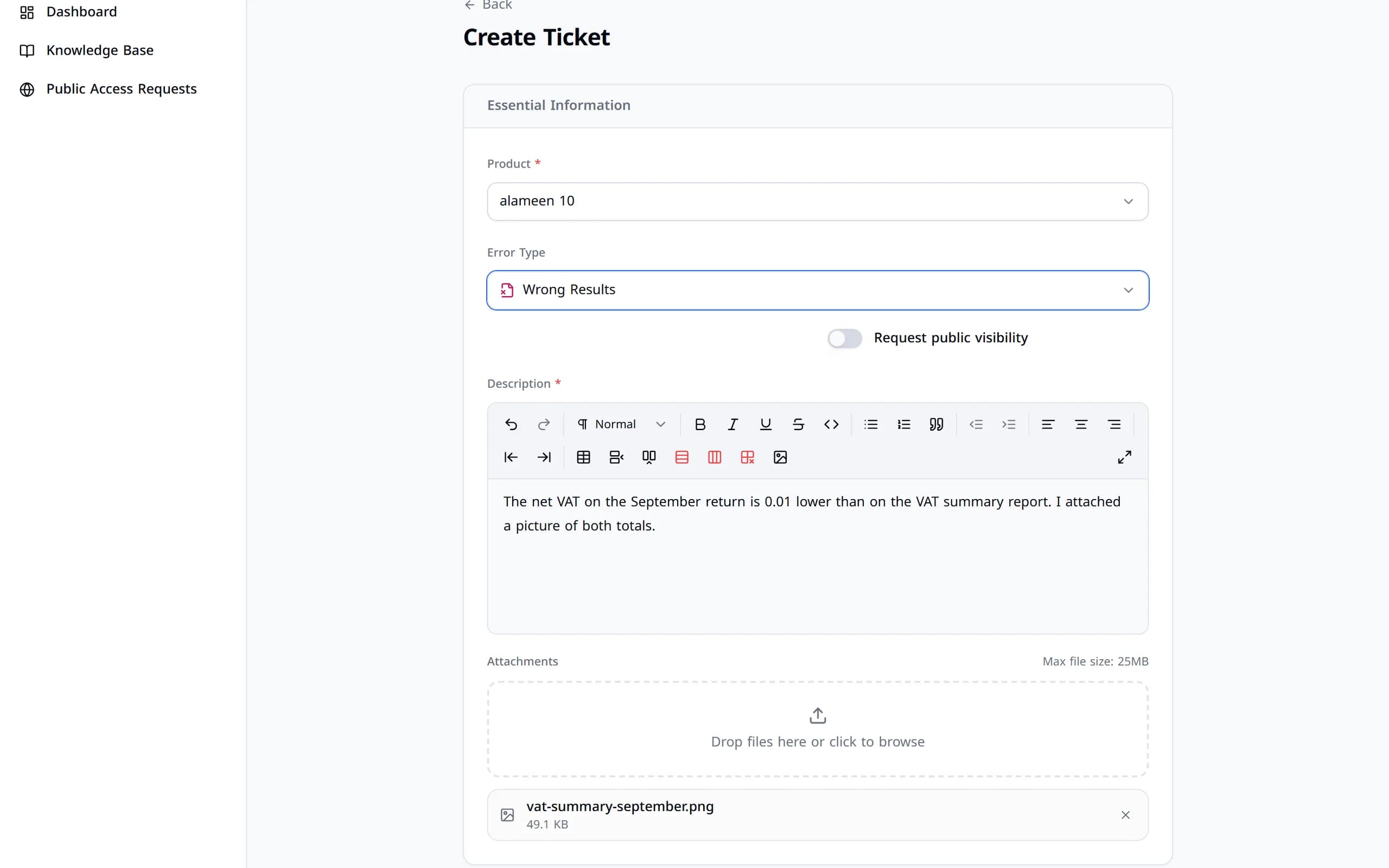
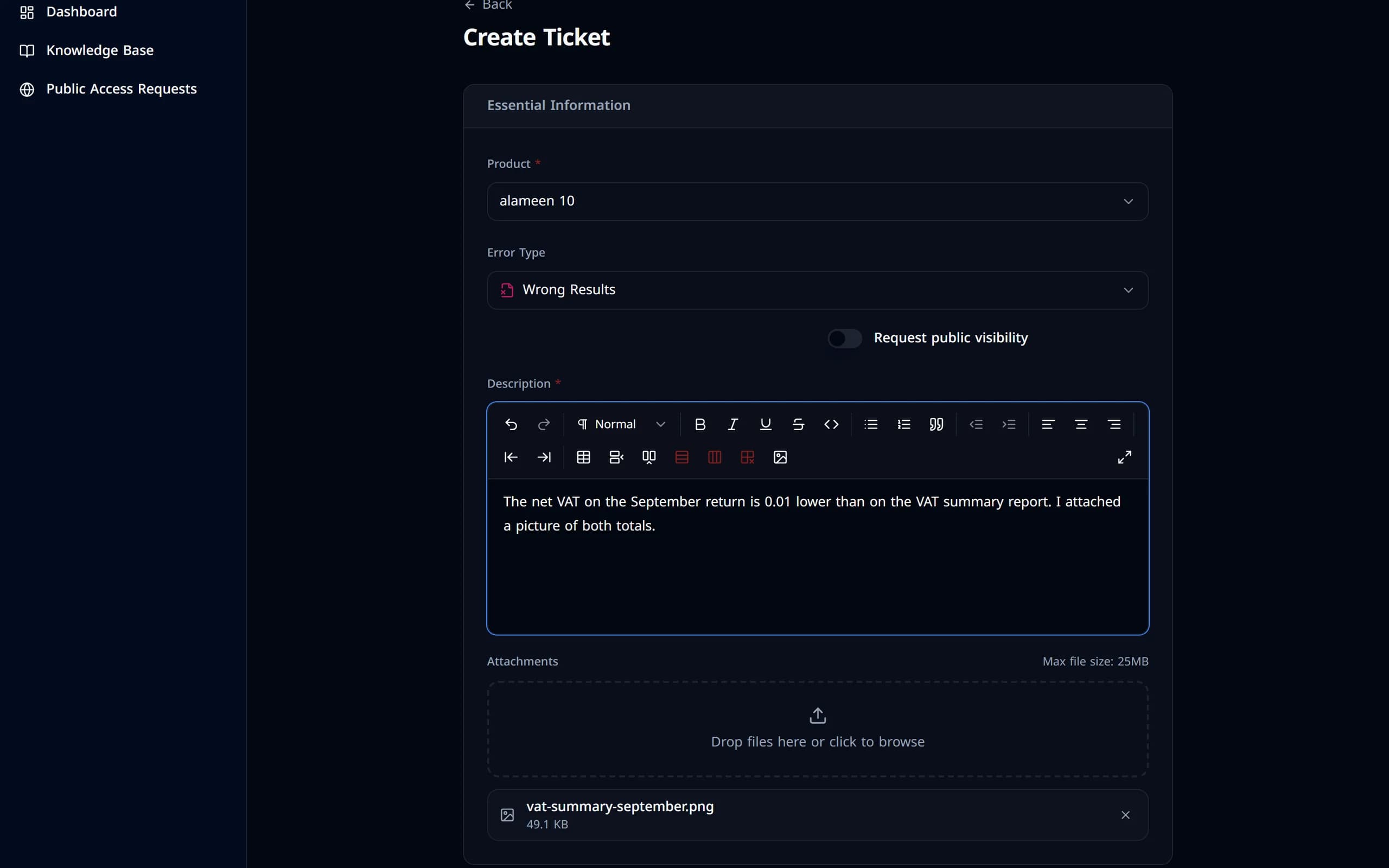
The form filled in: product, error type, a description and an attached picture.The form filled in: product, error type, a description and an attached picture.
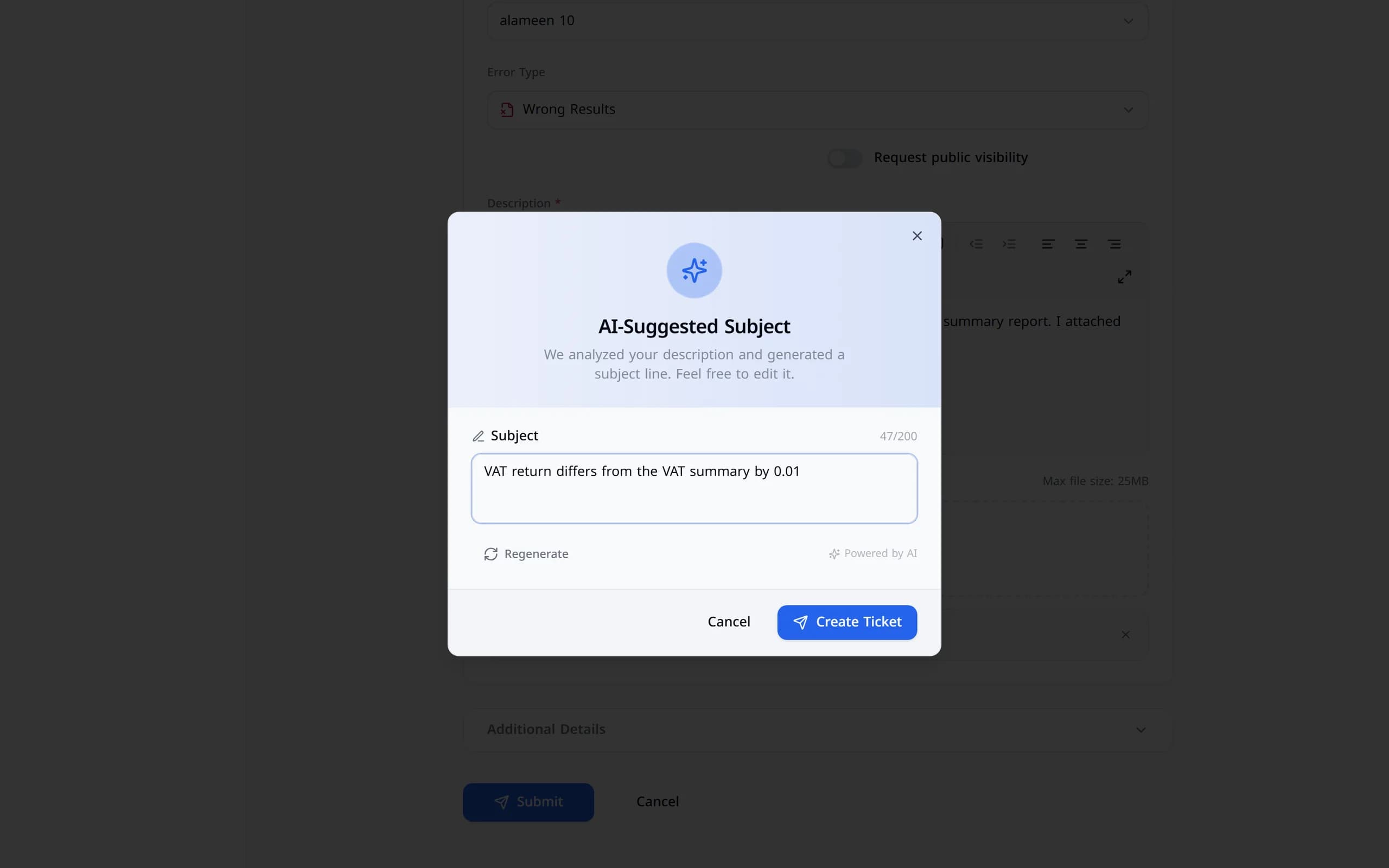
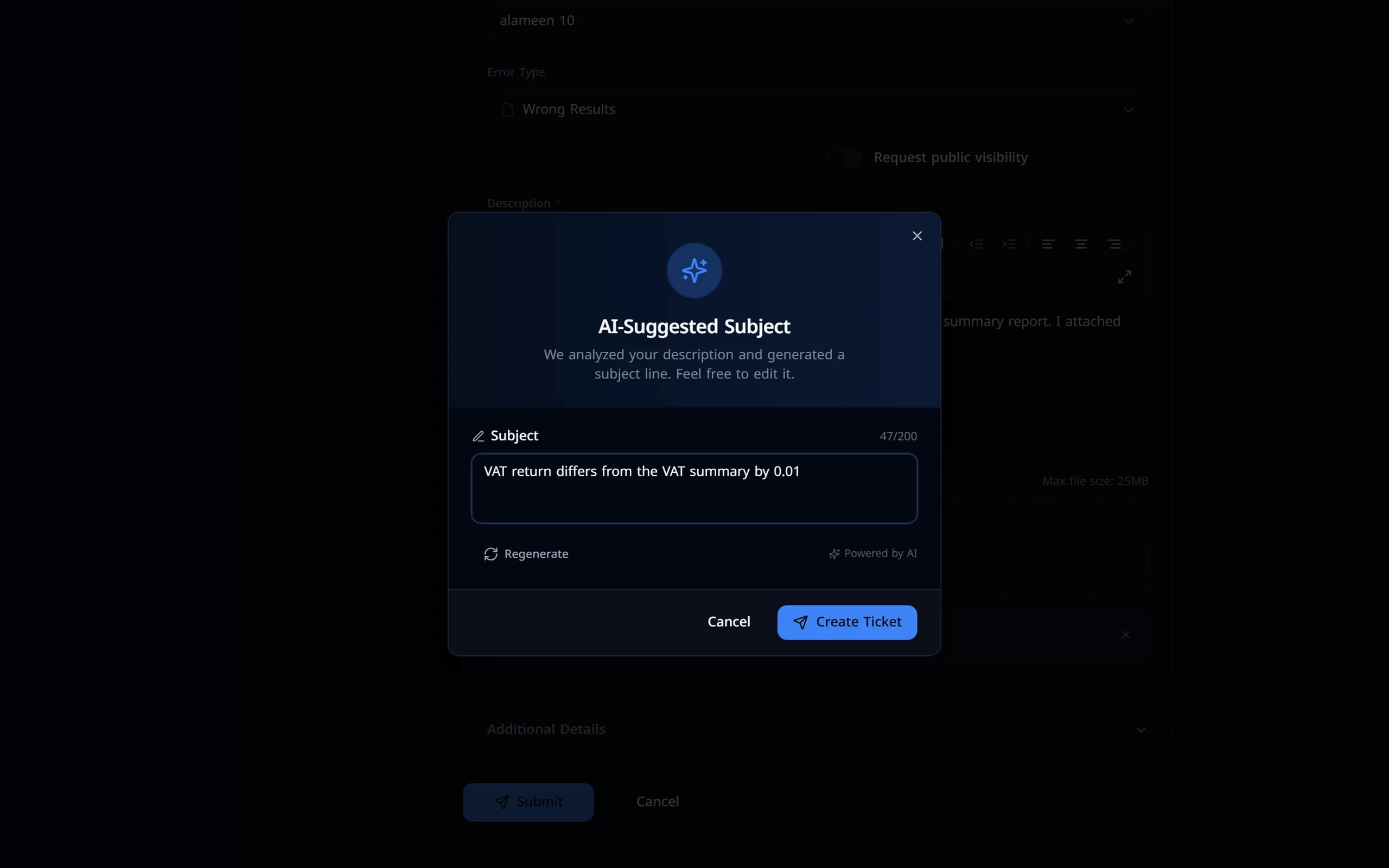
Naming the ticket before it is created.Naming the ticket before it is created.
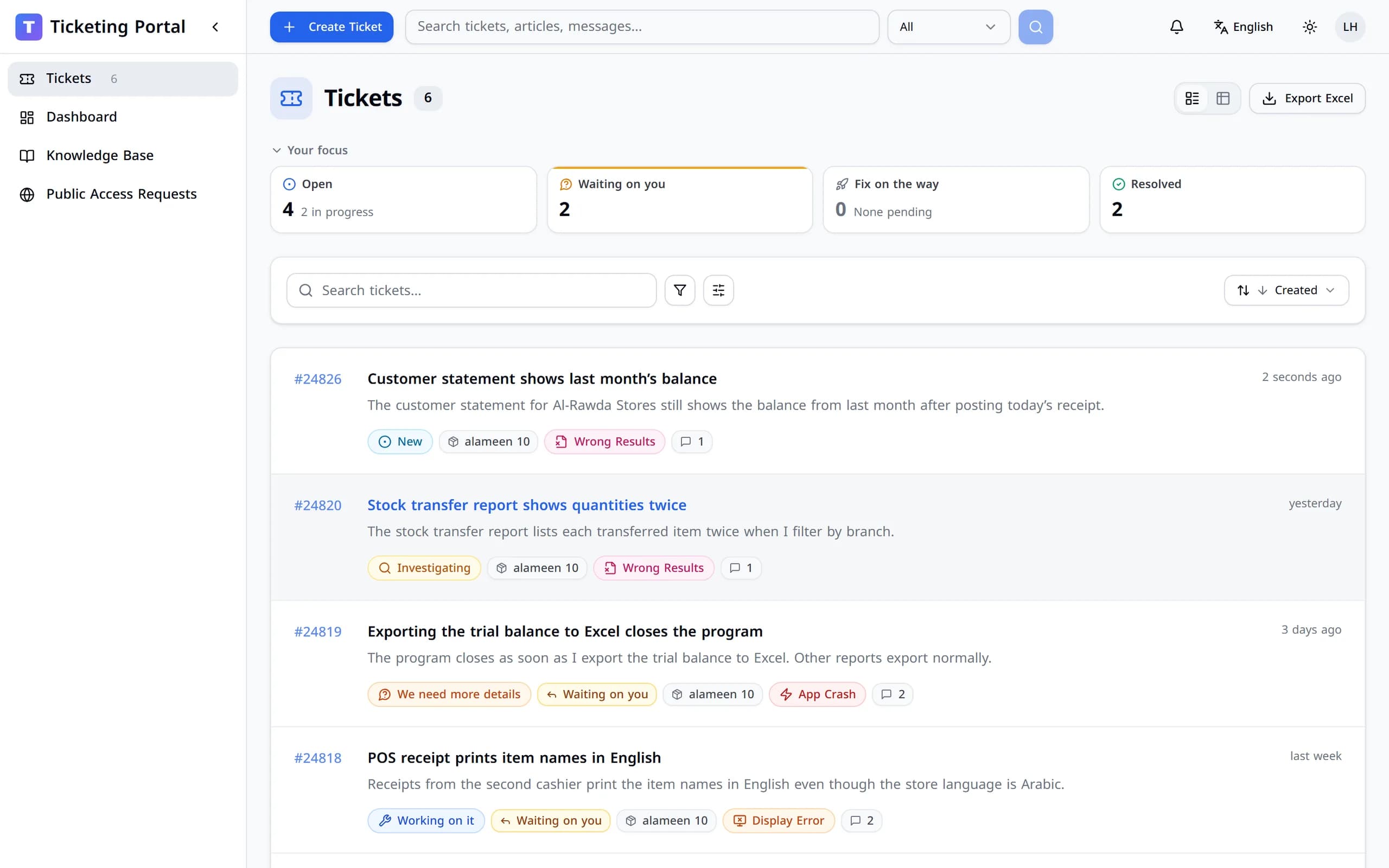
The new ticket, created with its own number.The new ticket, created with its own number.
The form filled in: product, error type, a description and an attached picture.
Naming the ticket before it is created.
The new ticket, created with its own number.

From alameen ERP

Support, without leaving alameen ERP.

Sign in with your portal account inside alameen ERP to open tickets, send a screenshot with diagnostic details, and follow every reply.

alameen ERP
Your work stays open
Support panel
Ticket#24826New

Customer statement shows last month’s balance

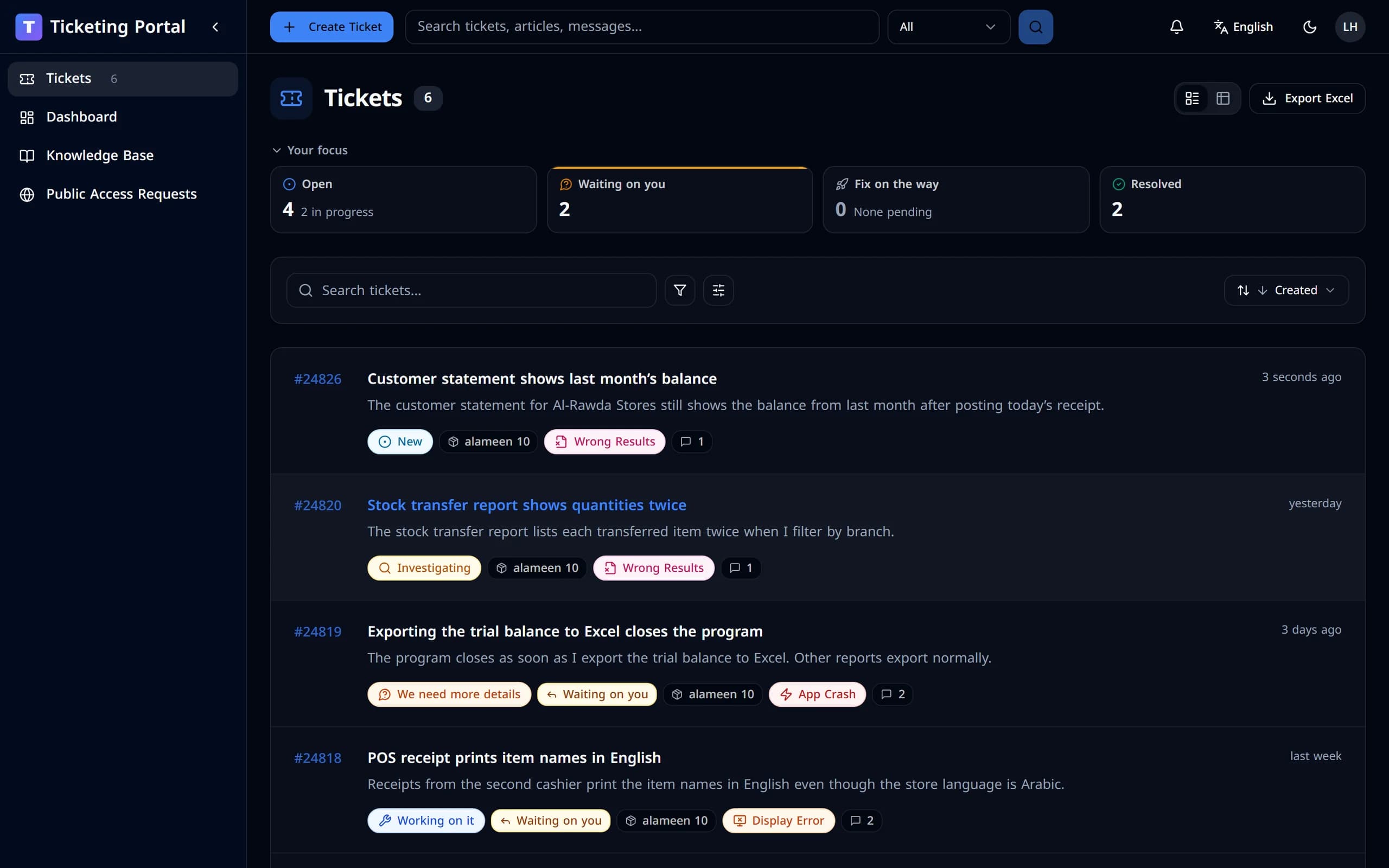
The portal’s ticket list, with a ticket that was sent through the desktop connection used by alameen ERP.The portal’s ticket list, with a ticket that was sent through the desktop connection used by alameen ERP.

Tickets sent from alameen ERP land in the same list as the ones you open on the web.

  • Open a ticket from the support panel — or straight from an error message.
  • A screenshot and diagnostic details can travel with it.
  • Read replies, answer, reopen and rate without switching windows.
  • alameen ERP lets you know when support replies.

Conversation

A ticket is a conversation.

Support replies inside the ticket. You answer with details or files, and the whole exchange stays in one thread.

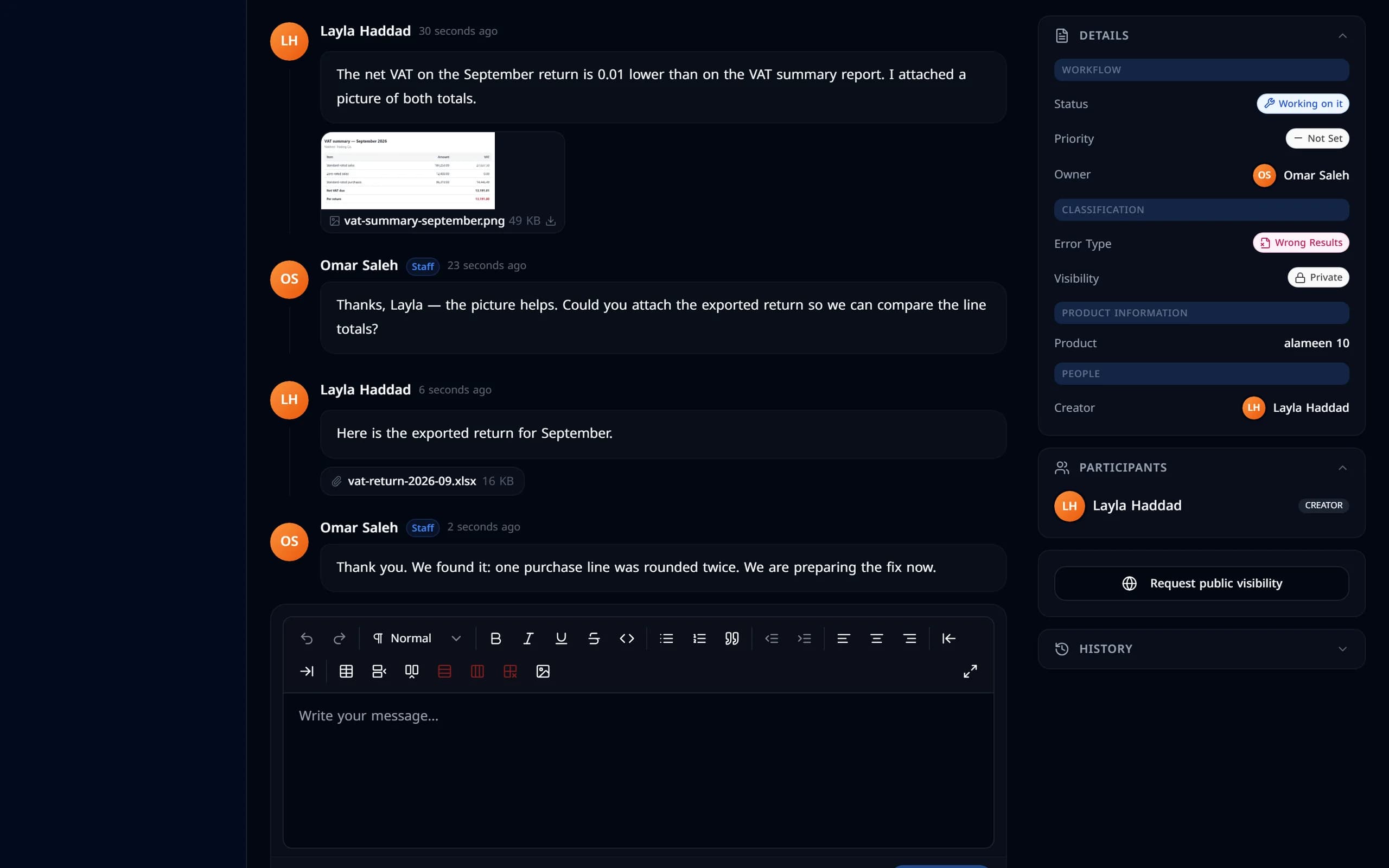
  1. 1You describe the problem, with a picture.
  2. 2Support asks for the exported file.
  3. 3You reply with the file attached.
  4. 4Support finds the cause.
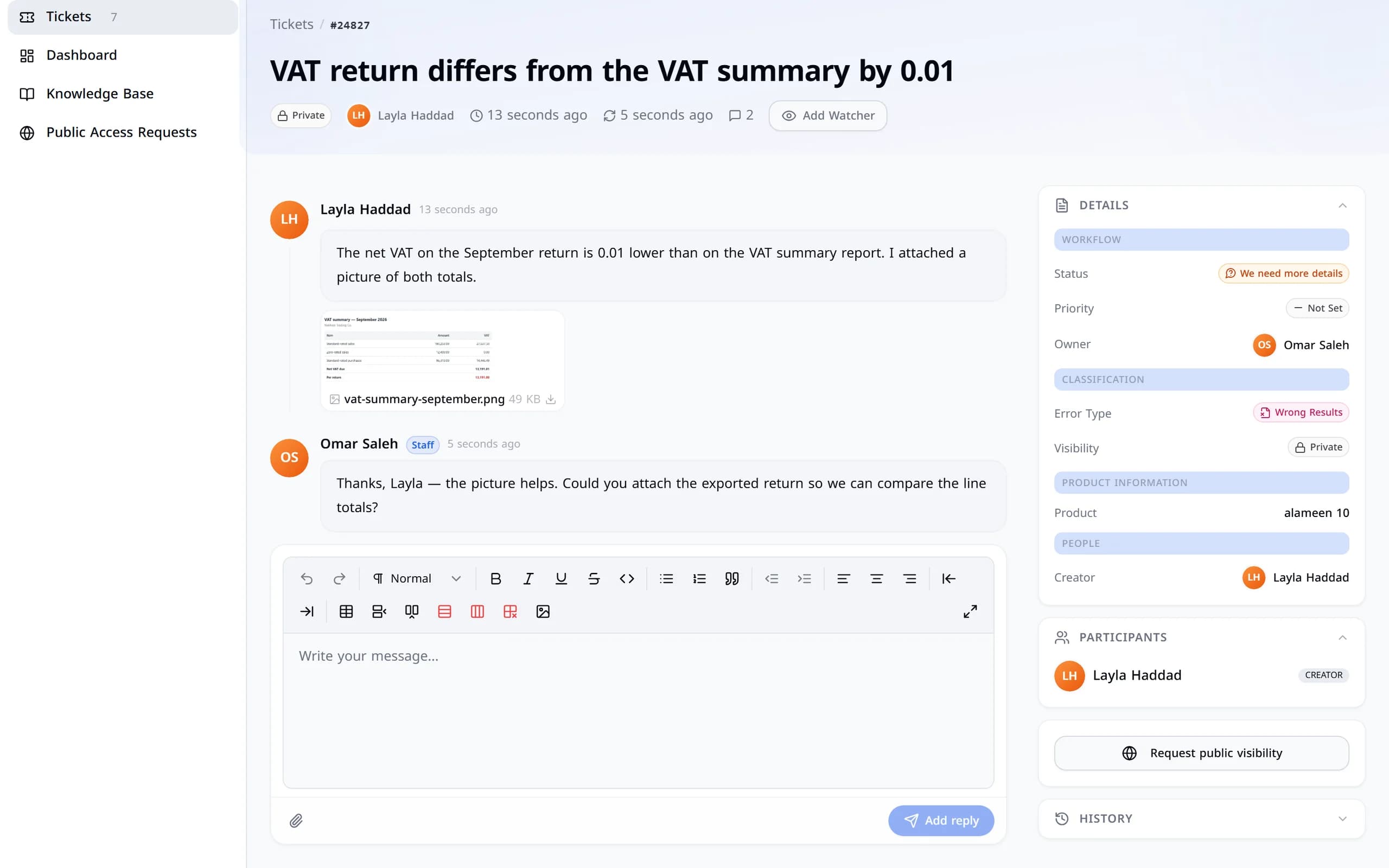
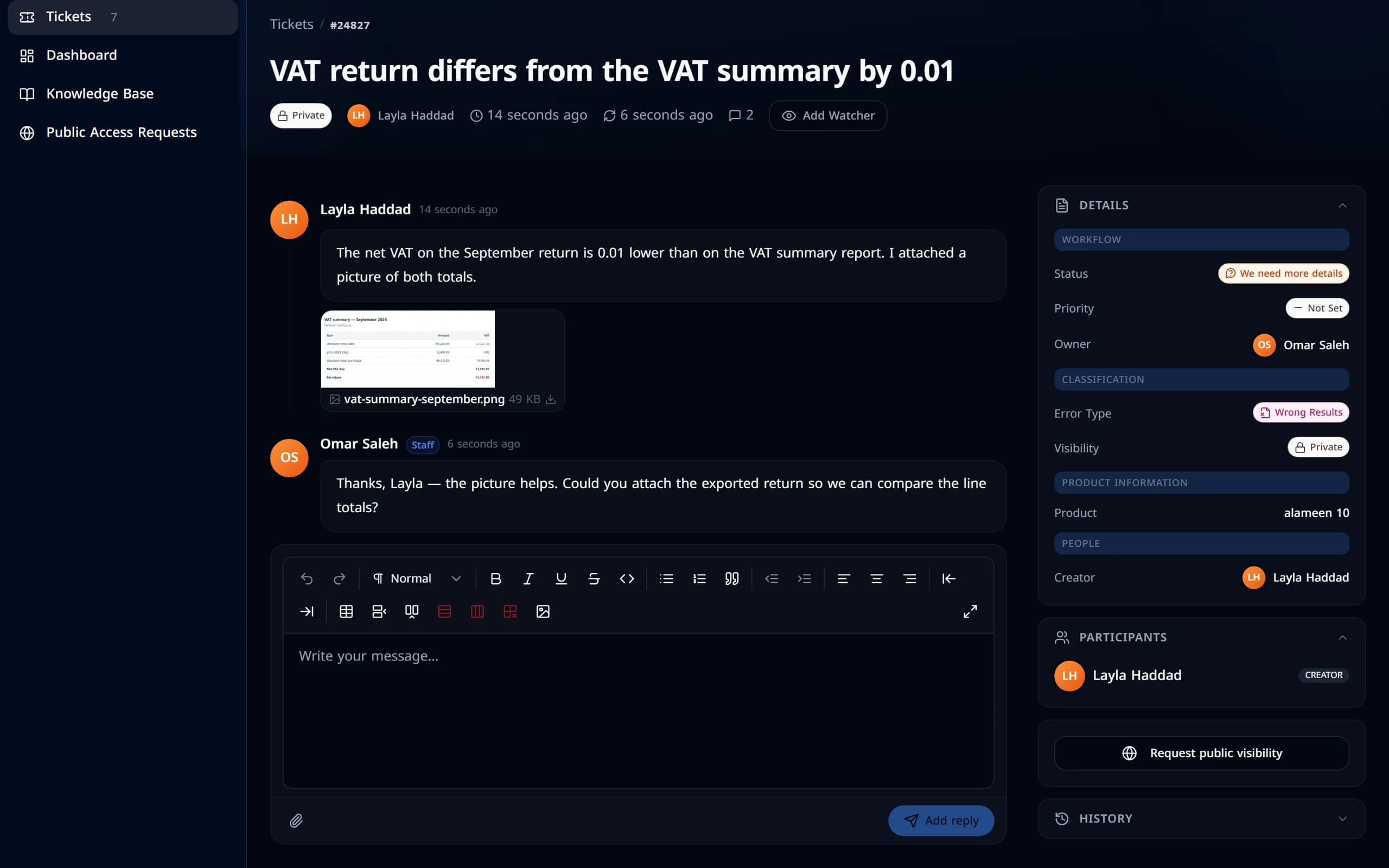
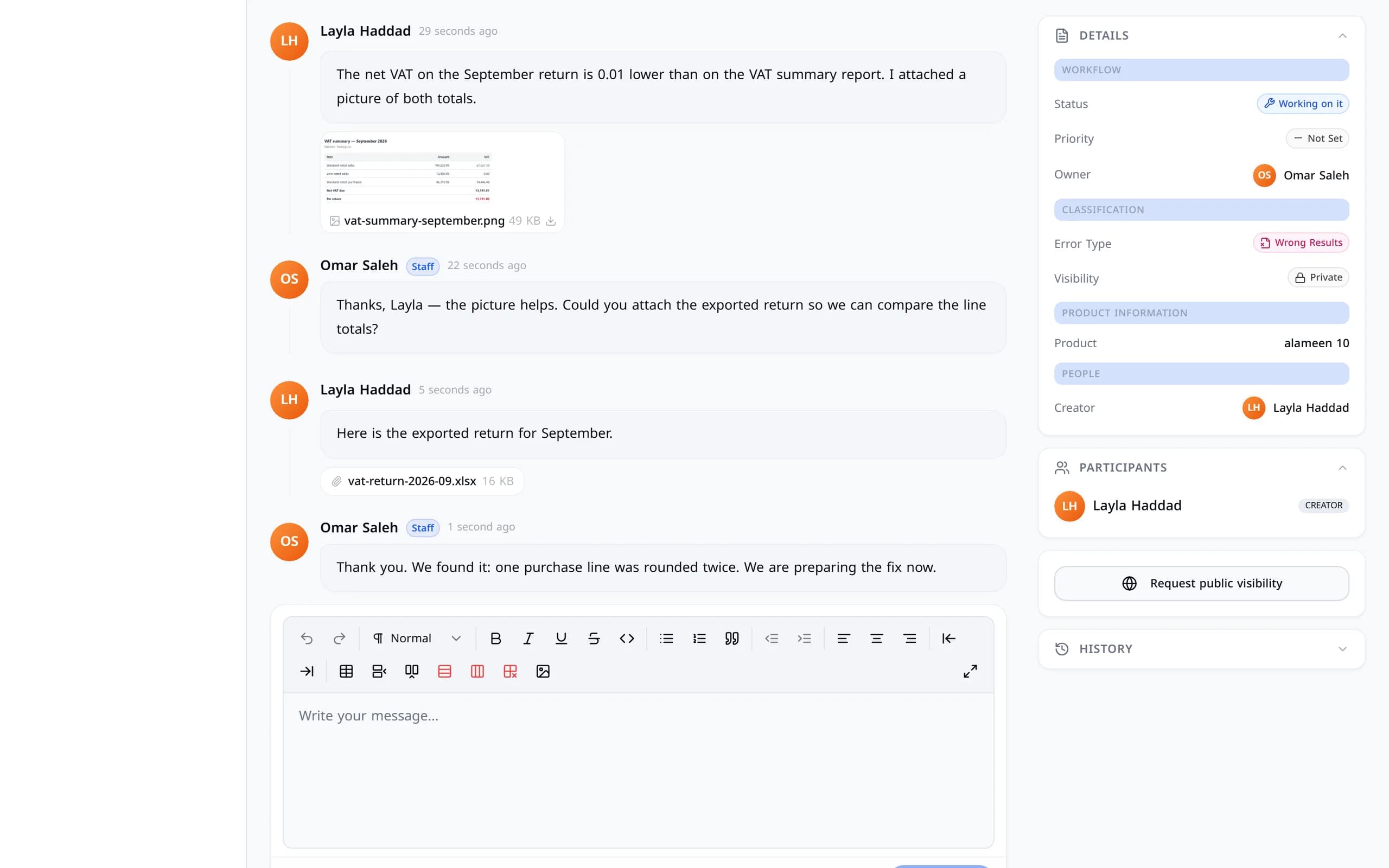
The ticket conversation: the customer’s description and picture, support’s question, the customer’s reply with a spreadsheet attached, and support’s answer.The ticket conversation: the customer’s description and picture, support’s question, the customer’s reply with a spreadsheet attached, and support’s answer.
Ticket#24827NewWe need more detailsWorking on it
The ticket conversation: the customer’s description and picture, support’s question, the customer’s reply with a spreadsheet attached, and support’s answer.
You describe the problem, with a picture.
The ticket conversation: the customer’s description and picture, support’s question, the customer’s reply with a spreadsheet attached, and support’s answer.
Support asks for the exported file.
The ticket conversation: the customer’s description and picture, support’s question, the customer’s reply with a spreadsheet attached, and support’s answer.
You reply with the file attached.
The ticket conversation: the customer’s description and picture, support’s question, the customer’s reply with a spreadsheet attached, and support’s answer.
Support finds the cause.

Follow

Always know where it stands.

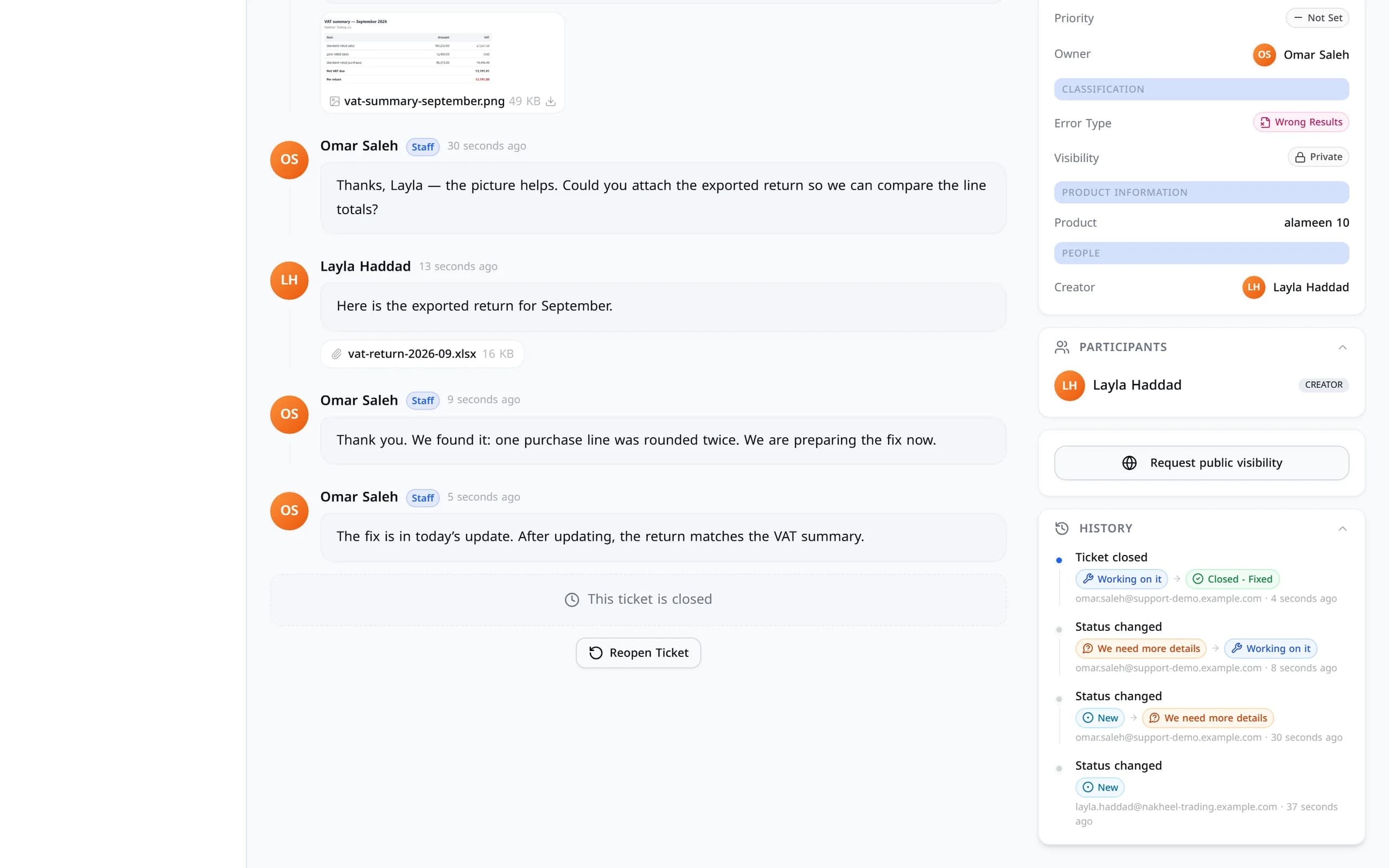
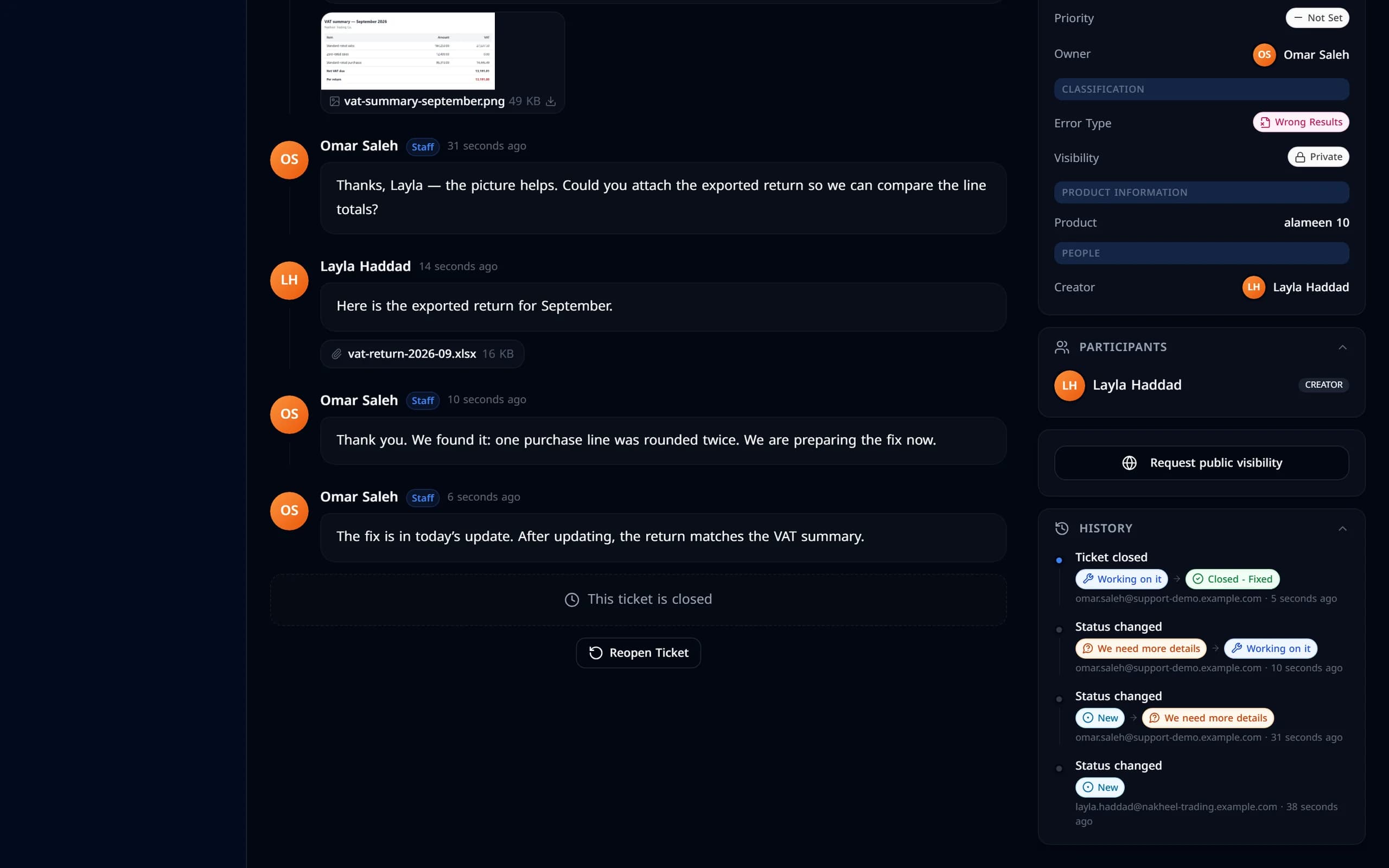
Every status change is recorded with its time, so you can see exactly how your ticket moved — and what it is waiting for.

  1. New
  2. We need more details
  3. Working on it
  4. Closed - Fixed
The ticket’s status history, with each change and its time.The ticket’s status history, with each change and its time.
The ticket’s status history, with each change and its time.

Updates

Never miss a reply.

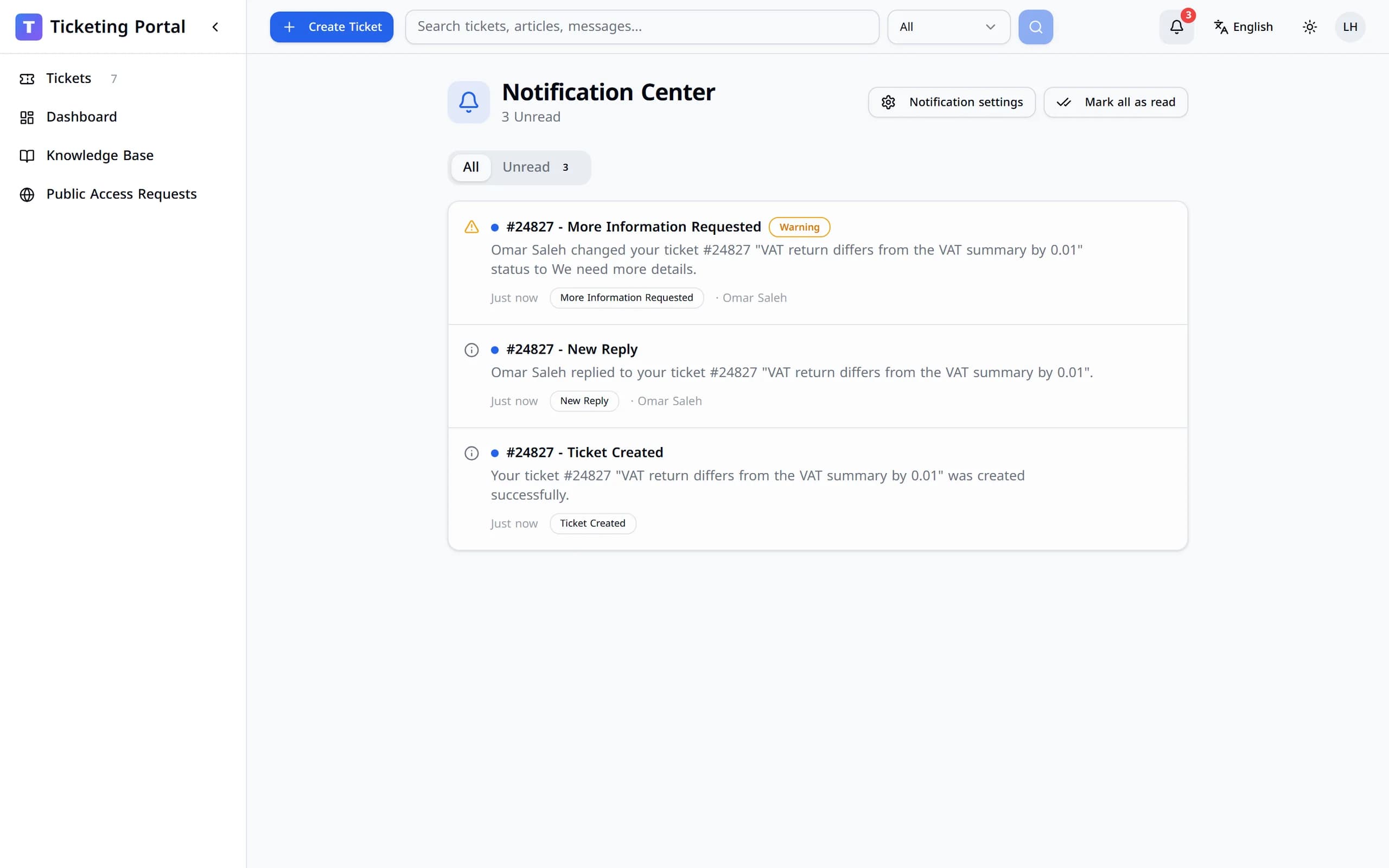
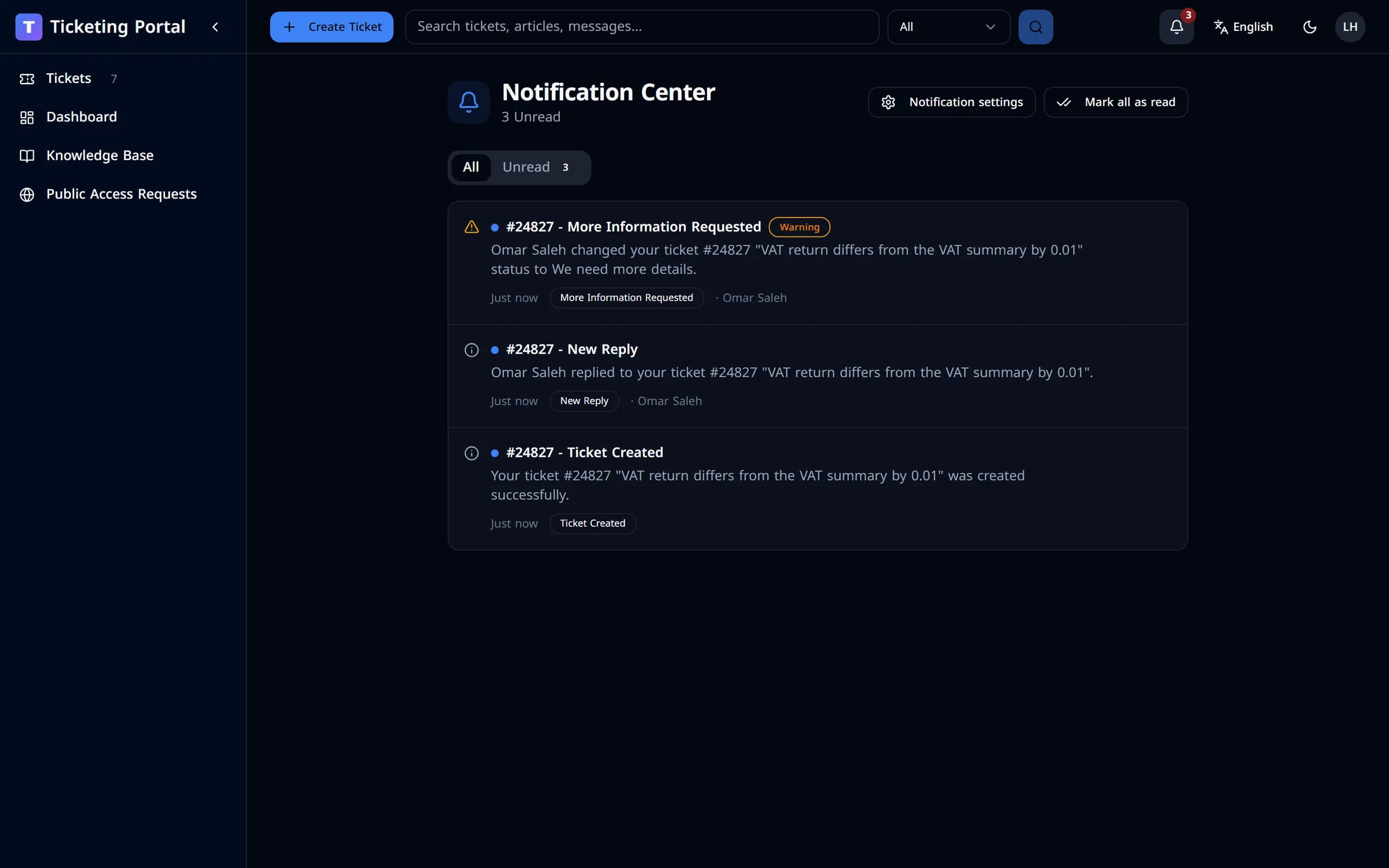
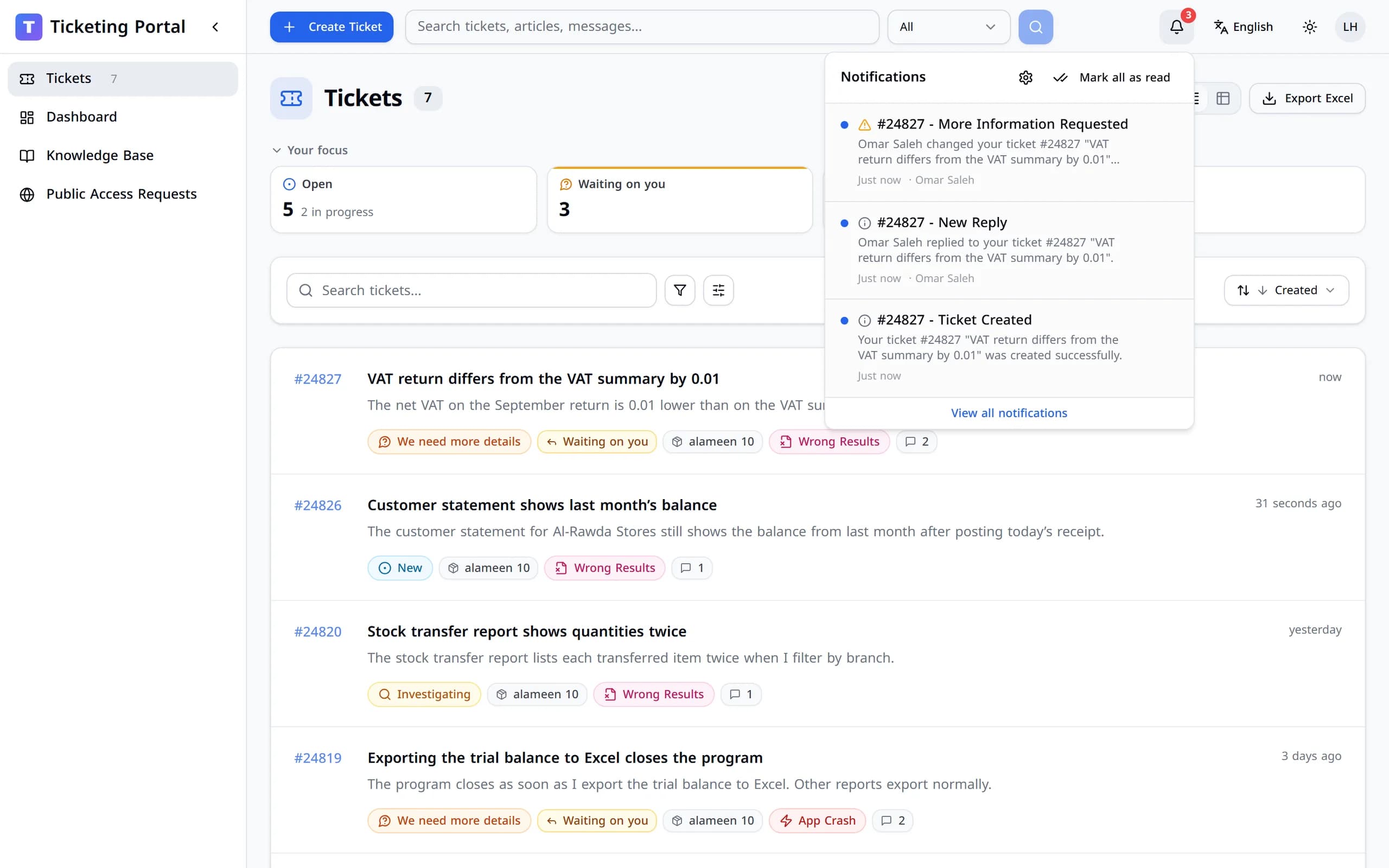
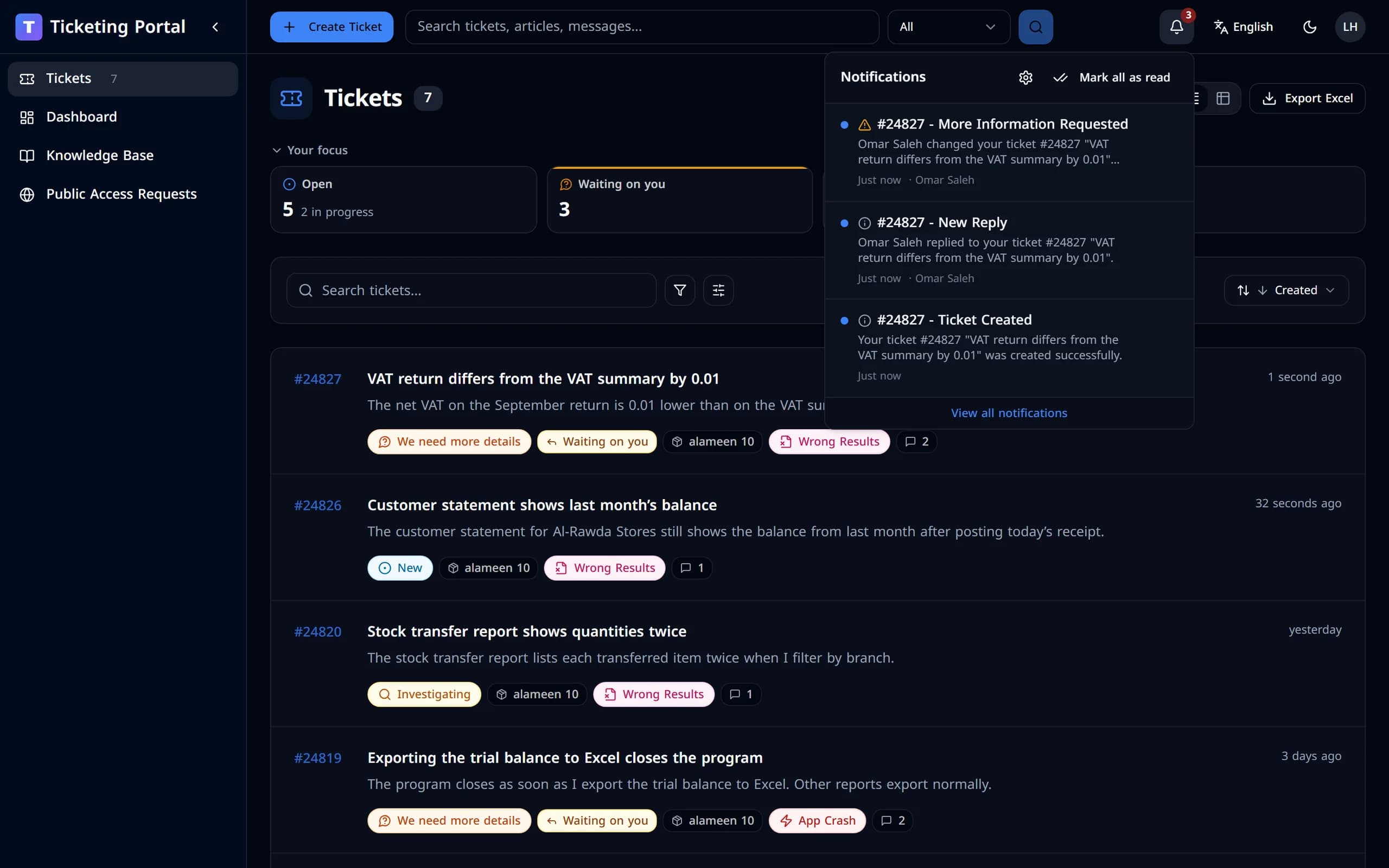
Replies and status changes appear in your notifications — and by email, as you prefer.

The notification center with the ticket’s notifications.The notification center with the ticket’s notifications.
The notifications menu showing a new reply and a request for more information on the ticket.

Wherever you work

Two doors. One support desk.

Start in alameen ERP and continue in the browser, or the other way round. It is the same ticket and the same conversation.

Web portal
A ticket in the web portal.A ticket in the web portal.
alameen ERP
alameen ERP
Your work stays open
Support panel

Around every ticket

Everything you need to get it solved.

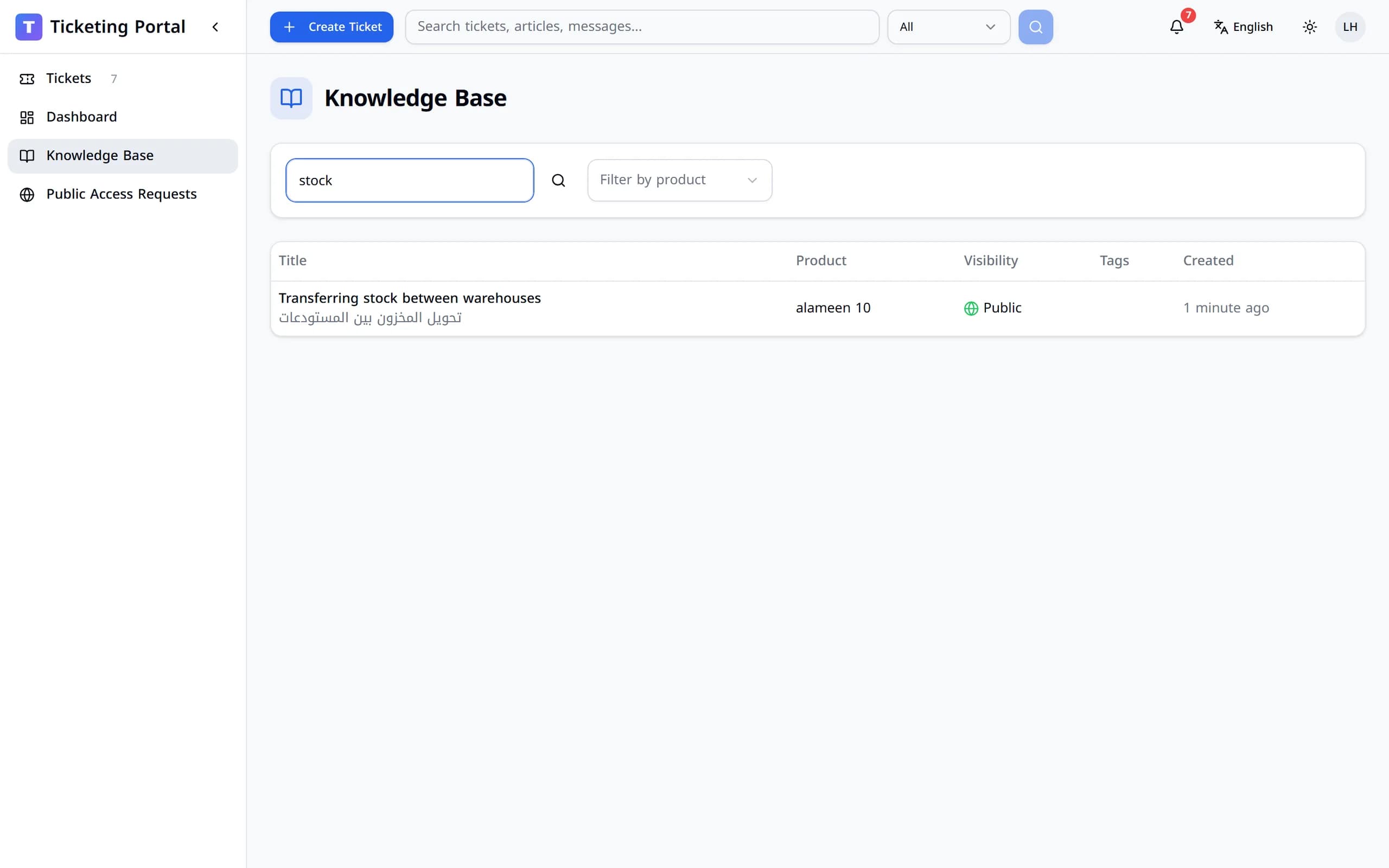
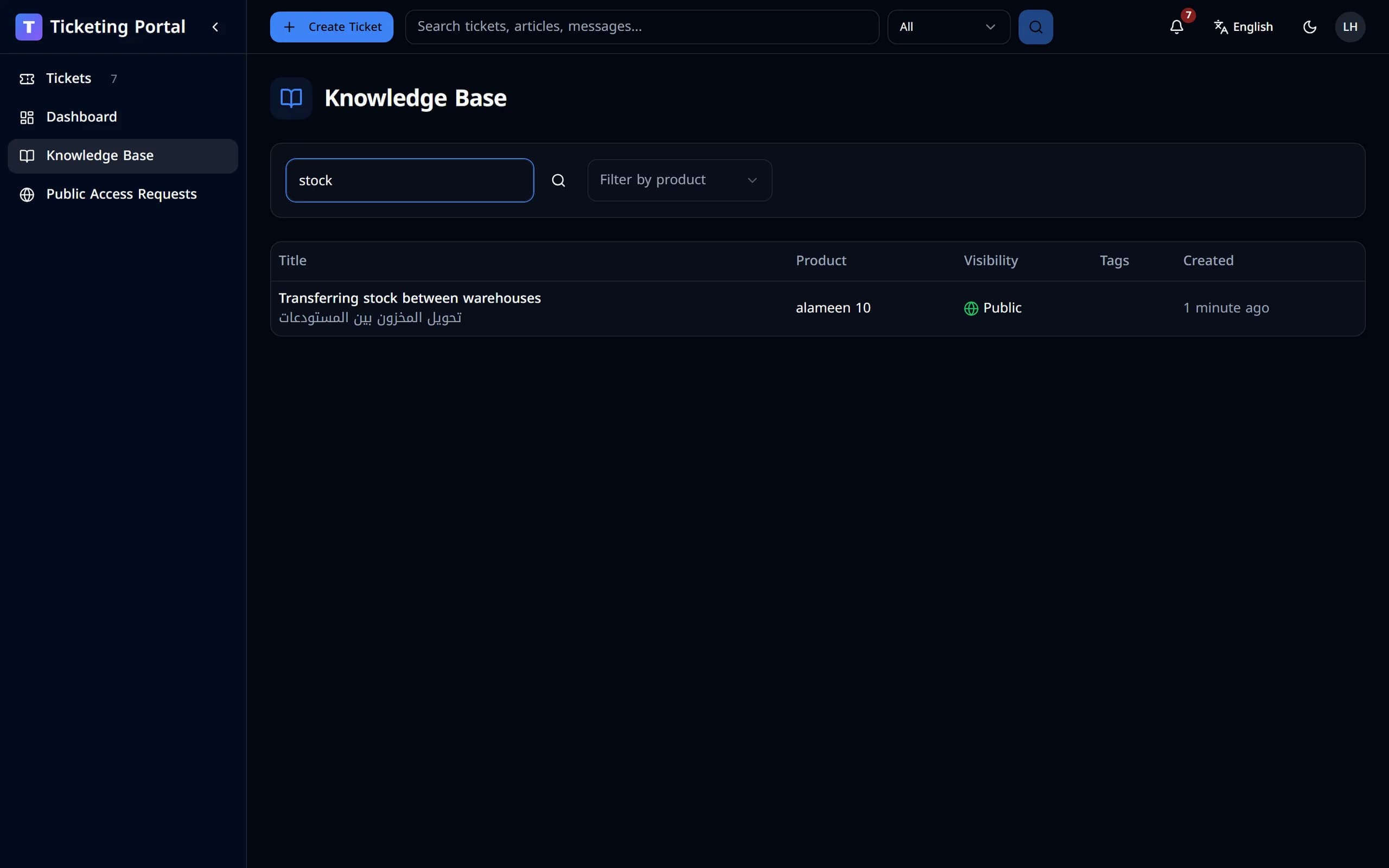
Search your tickets, or look for an answer in the knowledge base first.

Pictures, documents, spreadsheets and archives — up to 25 MB each, on the ticket or any reply.

The whole portal works in Arabic and English, right-to-left included.

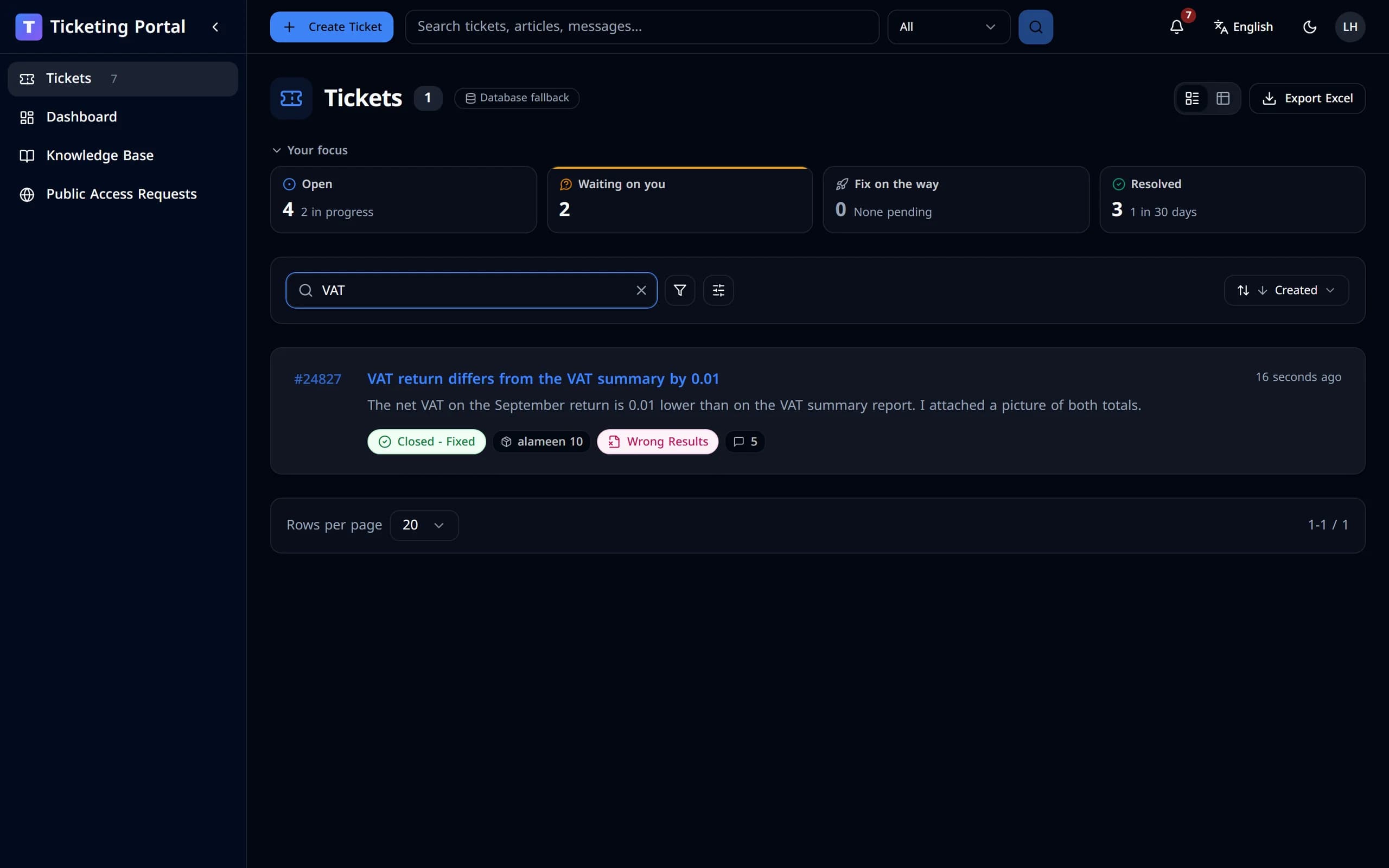
Every ticket you opened, with its replies and outcome. Export the list to Excel whenever you need it.

Searching the ticket list for a ticket about VAT.
Searching the knowledge base.
A reply with a spreadsheet attached to the ticket.
The same ticket page in Arabic and in English.The same ticket page in Arabic and in English.
The customer dashboard with open, pending and closed tickets.The customer dashboard with open, pending and closed tickets.

Find anything again

Search your tickets, or look for an answer in the knowledge base first.
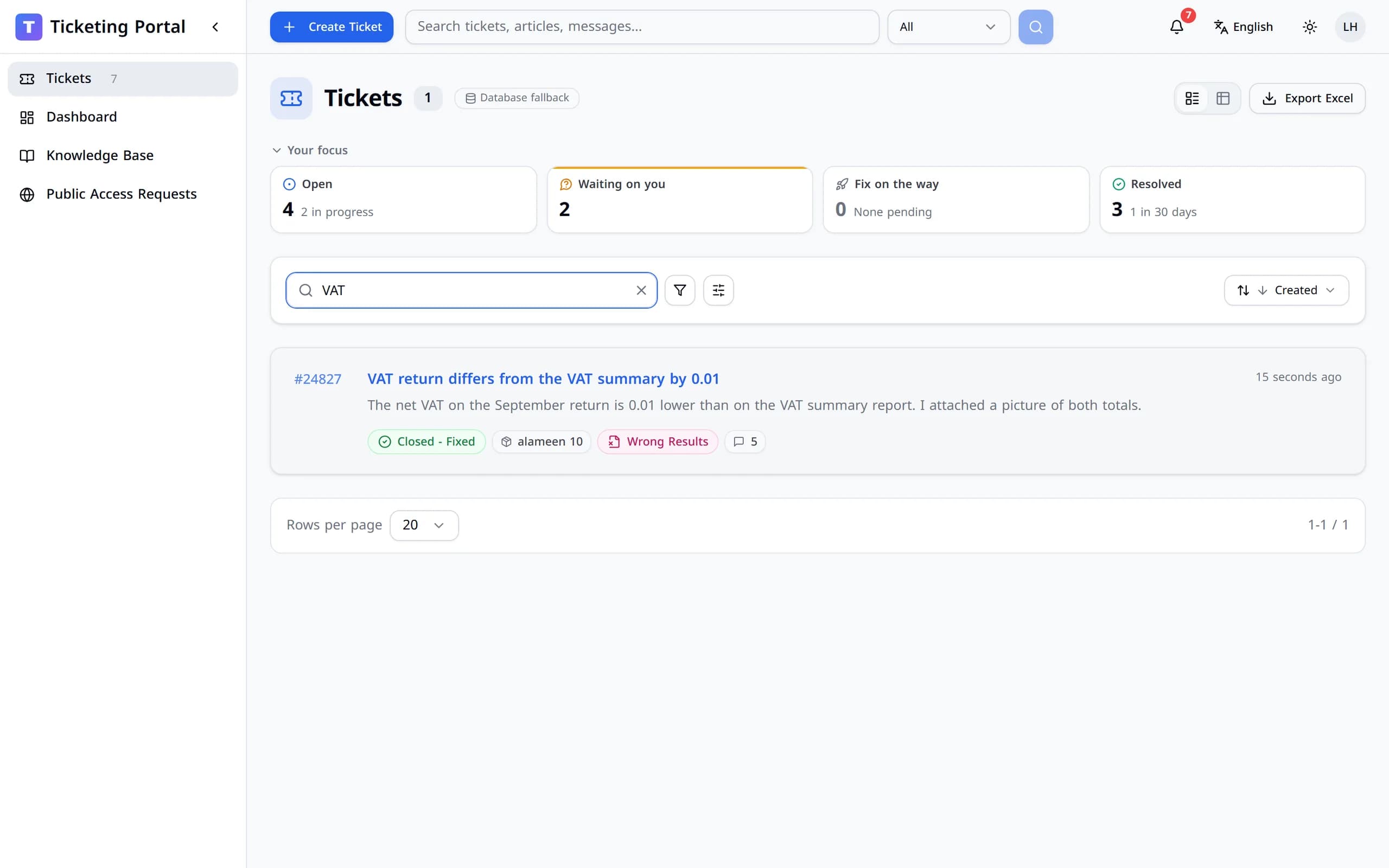
Searching the ticket list for a ticket about VAT.
Searching the knowledge base.

Show, don’t just tell

Pictures, documents, spreadsheets and archives — up to 25 MB each, on the ticket or any reply.

A reply with a spreadsheet attached to the ticket.

In your language

The whole portal works in Arabic and English, right-to-left included.

The same ticket page in Arabic and in English.The same ticket page in Arabic and in English.

Your support history

Every ticket you opened, with its replies and outcome. Export the list to Excel whenever you need it.
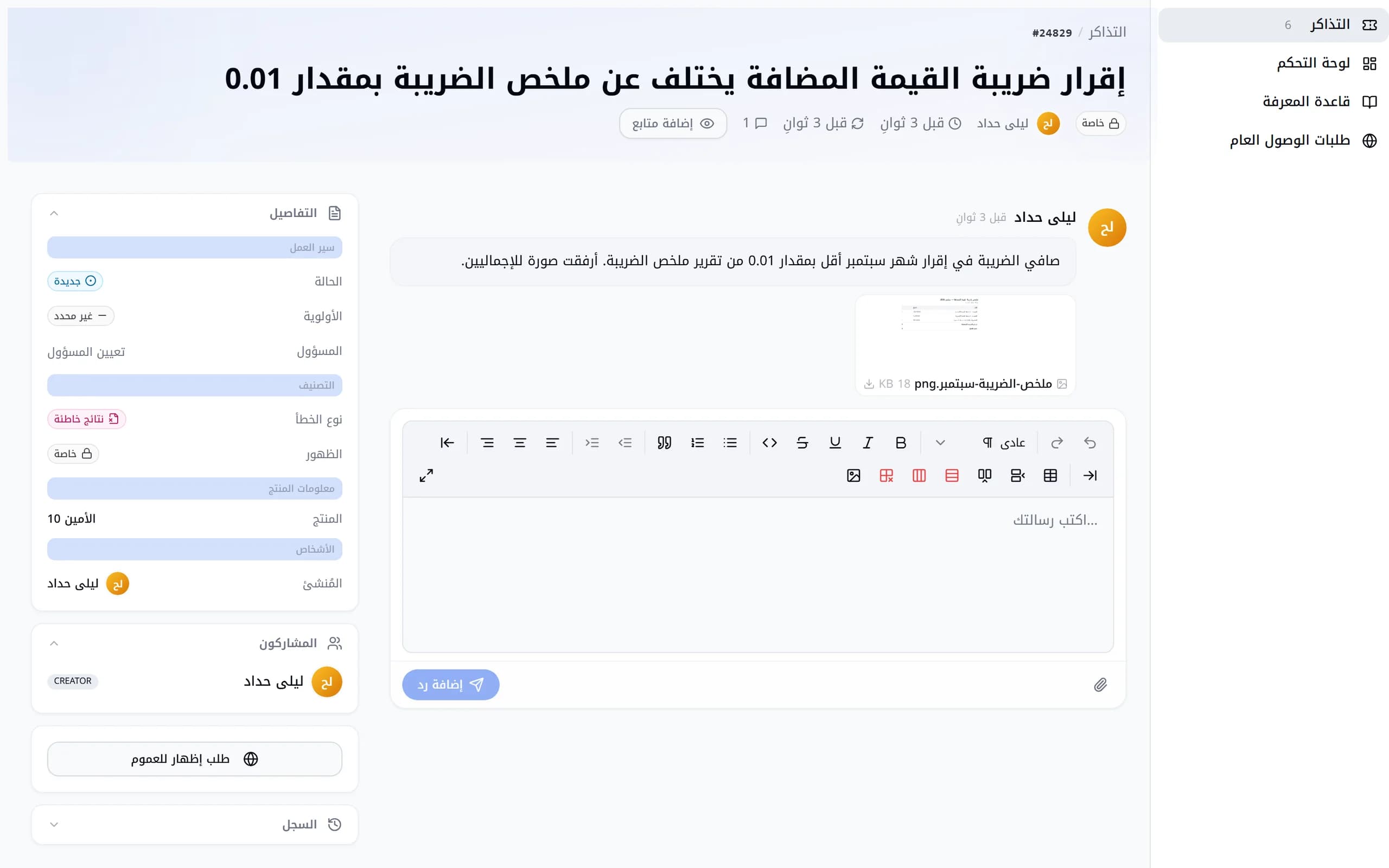
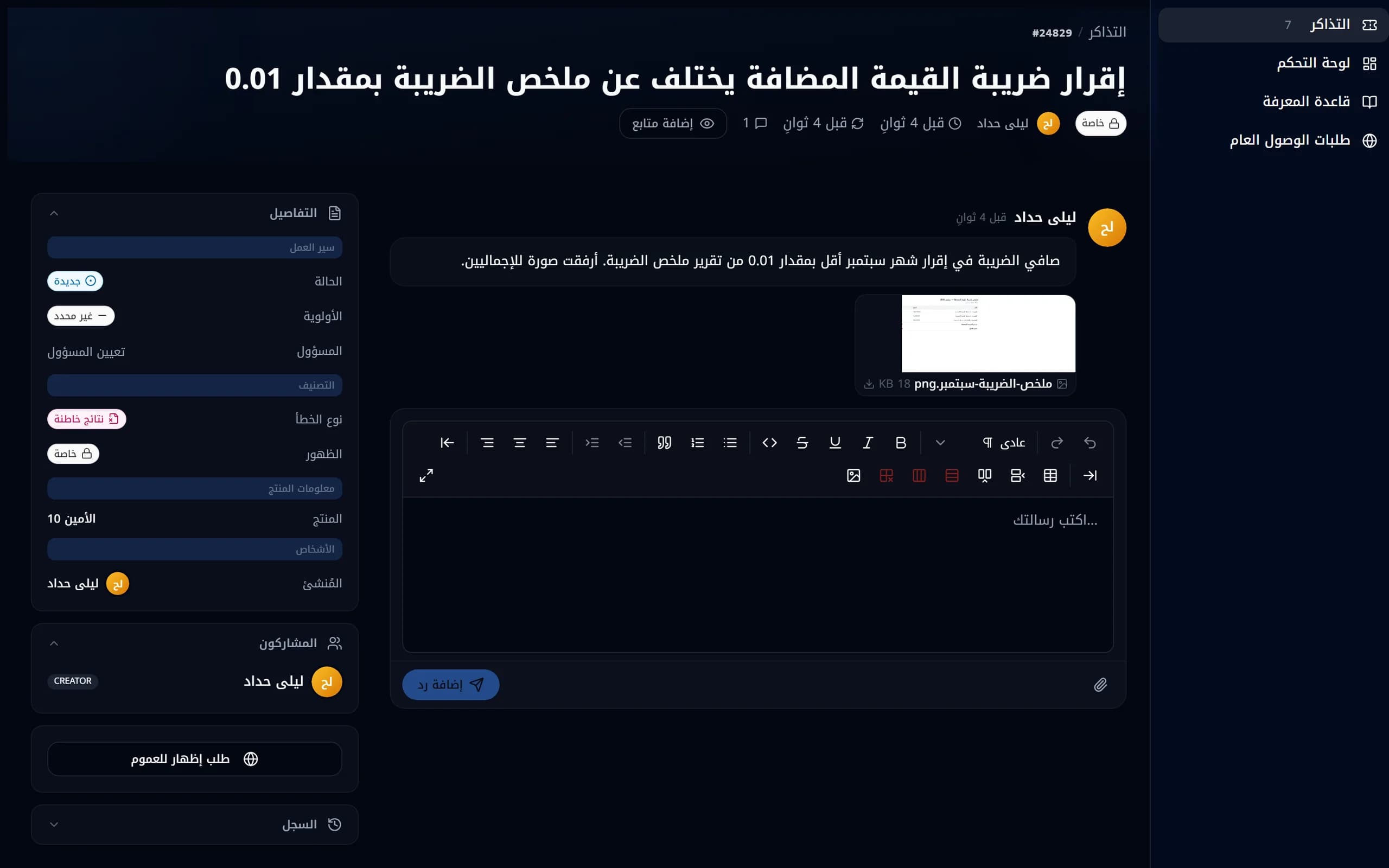
The customer dashboard with open, pending and closed tickets.The customer dashboard with open, pending and closed tickets.

The film

The whole journey in a minute.

From the first message to the fix — in the portal and in alameen ERP.

Read the transcript
  1. When something goes wrong, help should be one step away.
  2. Describe the problem, attach a picture, and your ticket is created — with its own number.
  3. Working in alameen ERP? Send the ticket from there, with a screenshot and diagnostic details.
  4. Every ticket reaches the same support team, in the same system.
  5. Support replies inside the ticket, and you are notified.
  6. Answer with more details or files. The whole conversation stays together.
  7. Follow each status change, in the portal or in alameen ERP.
  8. And when it’s fixed, you’ll know — and you can tell us how we did.
  9. alameensoft Support. One conversation, until it’s resolved.

Resolved

And when it’s fixed, you’ll know.

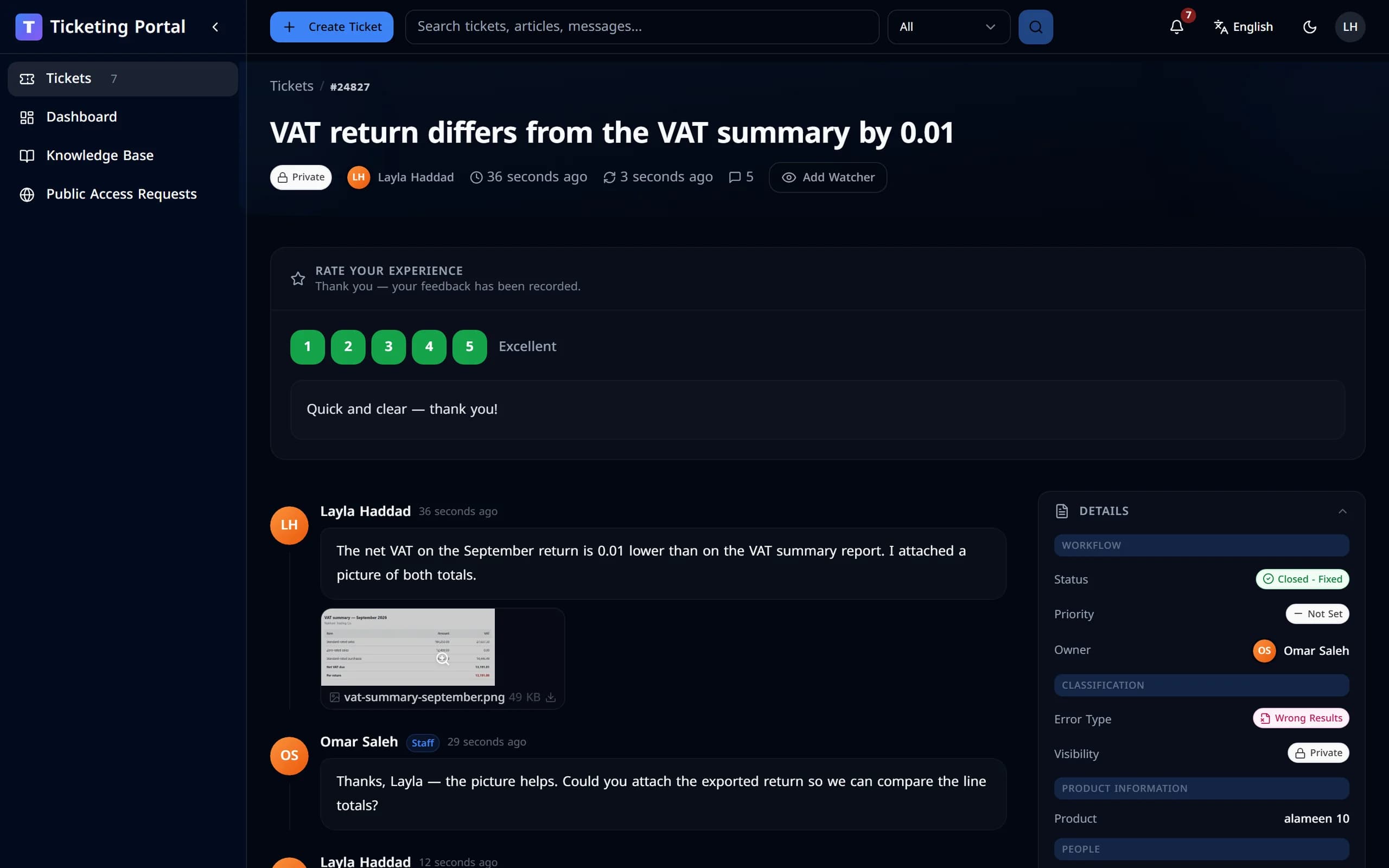
The ticket closes as fixed, and you can rate the support you received.

Ticket#24827Working on itClosed - Fixed

VAT return differs from the VAT summary by 0.01
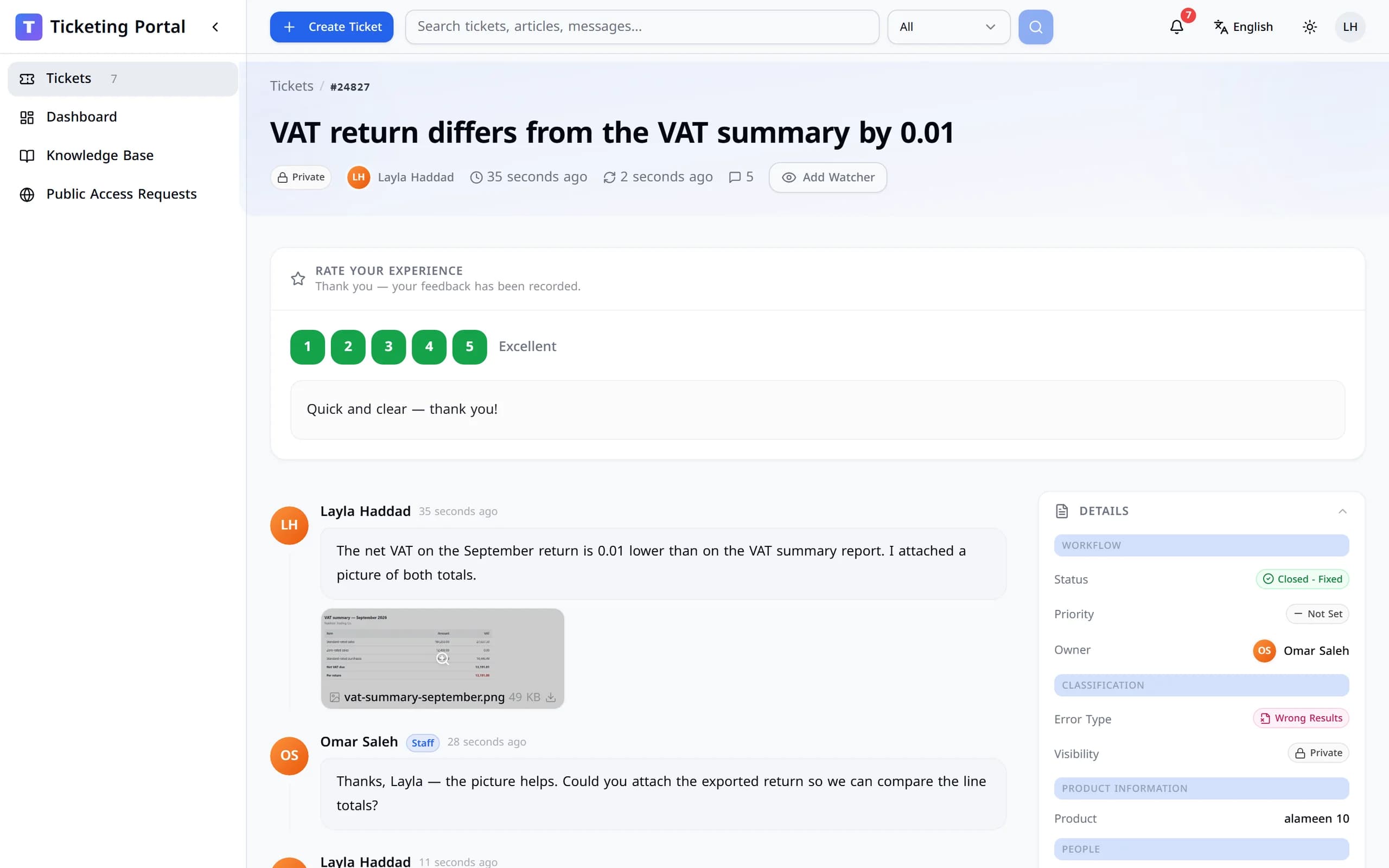
The ticket closed as fixed, with the customer’s rating of 5 and a comment.The ticket closed as fixed, with the customer’s rating of 5 and a comment.
The ticket closed as fixed, with the customer’s rating of 5 and a comment.

Need help?Start the conversation.

Open a ticket now, or sign in to follow the ones you already have.